
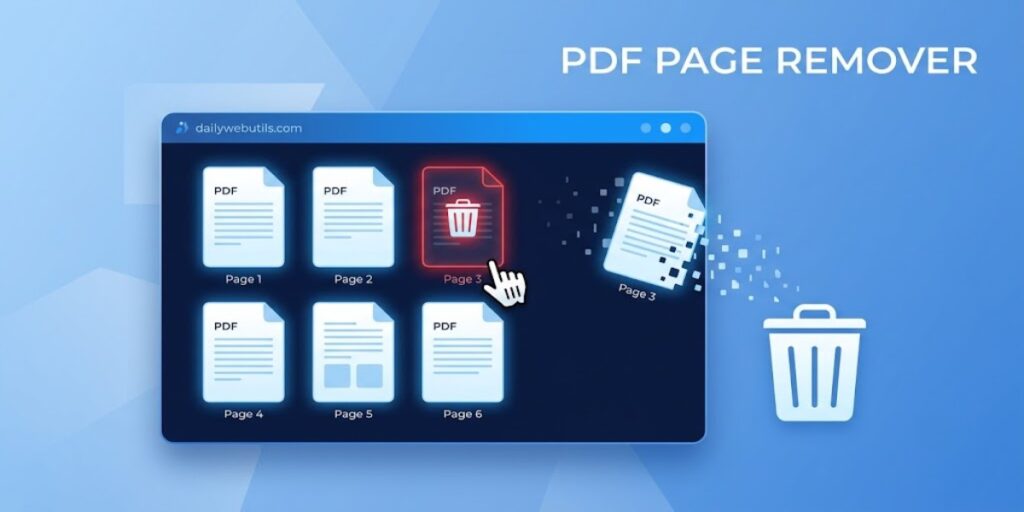
Imagine this: You are about to email a 50-page legal contract or corporate report to a client, but you suddenly realize that page 42 contains highly confidential pricing data that they aren’t supposed to see. Or perhaps you scanned a document, and half of the pages are completely blank.
You need to remove pages from the PDF, but you don’t have an expensive Adobe Acrobat subscription.
The good news? You don’t need heavy software to fix this. In this guide, we will show you how to securely delete unwanted PDF pages in just a few clicks using the ultra-fast, next-gen DailyWebUtils PDF Page Remover.
Why Should You Remove Pages from a PDF?
In the modern digital workspace, editing your document structure is a critical daily task. Here is why professionals regularly delete PDF pages:
- Protect Confidentiality: Instantly remove sensitive information, internal memos, or private financial data before sharing a document externally.
- Clean Up Scanned Files: Eliminate accidental blank pages, duplicate scans, or blurred sheets that make your document look unprofessional.
- Extract What Matters: If someone sends you a massive 200-page e-book, but you only need a 5-page chapter, deleting the rest makes the file easier to read and share.
- Reduce File Size: Removing heavy, image-packed pages that you don’t need is a quick way to shrink your file. (Pro Tip: If your file is still too large after removing pages, run it through our Compress PDF engine for maximum optimization).
How to Delete PDF Pages Online (3 Simple Steps)
At DailyWebUtils, we built a minimalist, browser-based SaaS tool that allows you to manage your documents without annoying pop-ups or software installations. It works flawlessly on Windows, macOS, iOS, and Android.
Here is the exact framework to clean up your file:
Step 1: Upload Your Document
Head over to the Remove PDF Pages Tool (Replace with your live tool link) on DailyWebUtils. Drag and drop your target PDF into the secure upload zone, or click the upload button to select the file from your local storage.
Step 2: Select and Delete Pages
Once uploaded, our smart visual engine will instantly generate high-quality thumbnails for every single page in your document.
- Simply hover over the pages you want to eliminate and click the Trash/Delete icon.
- Want to remove multiple pages at once? Just click to select them and hit delete.
Step 3: Apply and Download
After you have trashed the unwanted pages, click the Apply Changes button. Our cloud engine will instantly rebuild your document’s vector schema. Click Download to save your clean, perfectly organized PDF.
The DailyWebUtils Ecosystem: Enterprise-Grade Security
When dealing with medical records, legal NDAs, or financial reports, security isn’t just an option—it’s mandatory. Users across the US, UK, Canada, and beyond trust DailyWebUtils because we prioritize data privacy:
- Military-Grade Encryption: Your files are uploaded via 256-bit SSL encrypted connections. Interception is virtually impossible.
- Auto-Deletion Protocol: We do not store, read, or sell your documents. Every file uploaded to our servers is permanently and automatically wiped within 60 minutes of processing.
- 100% Free Ecosystem: No hidden paywalls. Need to fix an upside-down page before deleting others? Use our Rotate PDF tool. Need to break a large file into multiple parts instead of deleting? Our Split PDF tool has you covered.
Frequently Asked Questions (Featured Snippet Optimized)
1. Can I remove multiple pages from a PDF at the same time?
Yes! The DailyWebUtils visual dashboard allows you to select as many pages as you want. Whether you are deleting a single blank page or removing 50 pages from a 100-page report, you can do it all in one swift action.
2. Will deleting pages ruin the formatting of the rest of the document?
Not at all. Our advanced PDF engine safely extracts the unwanted pages without altering the core metadata, fonts, or image resolutions of the remaining pages. Your document’s quality remains 100% intact.
3. Can I use this tool on my iPhone or Android device?
Absolutely. DailyWebUtils is a fully responsive web application. You don’t need to download any apps. Just open your mobile browser (Safari, Chrome, etc.), navigate to our site, and easily tap the pages you want to delete.
4. How can I combine the remaining pages with another file?
Once you have removed the unwanted pages and downloaded your clean PDF, you can seamlessly combine it with other documents or images using our lightning-fast Merge PDF tool.
Ready to Clean Up Your Documents?
Stop sending massive, disorganized files. Protect your data and streamline your documents securely in seconds.